CREATOR WALKTHROUGH
Hair, lashes & the newer Style Studio
The customization recording used for these screenshots. Hair starts around 0:26; lashes around 1:20.
Play to load YouTube’s video player. Watch on YouTube ↗
Find the right styling panel
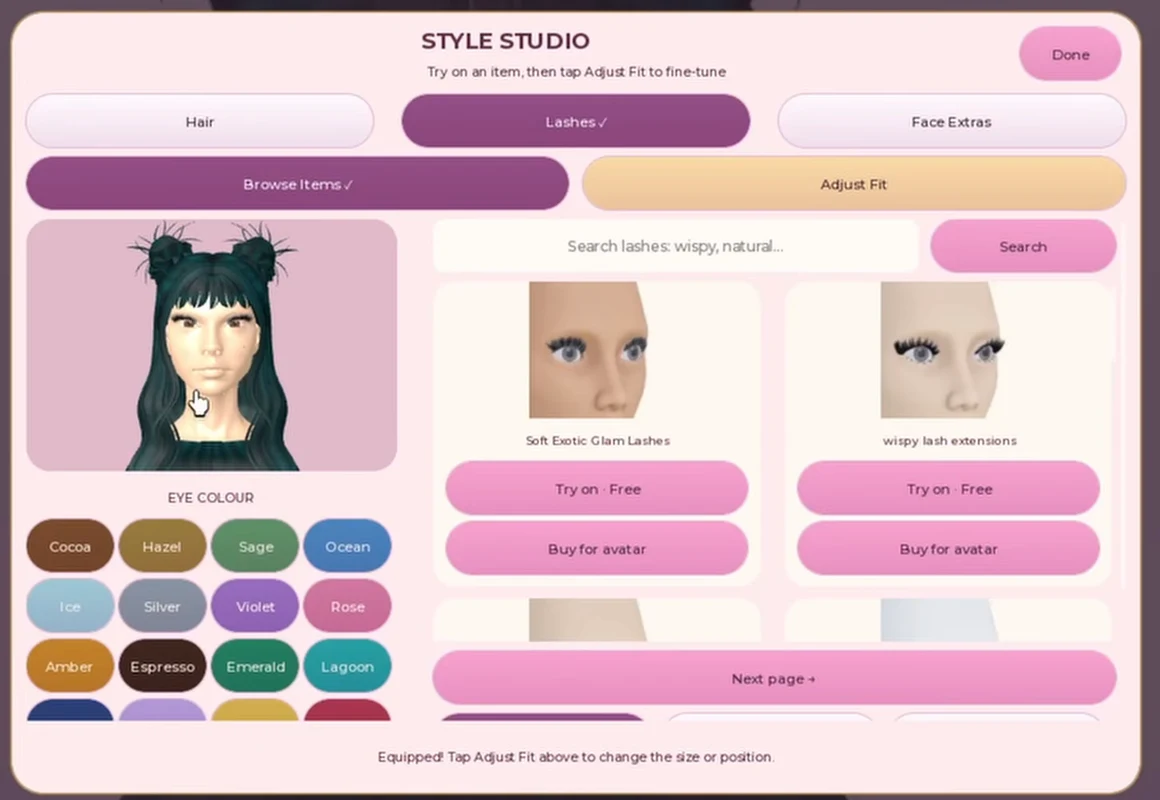
The newer recording shows Hair and Lashes buttons in the left toolbar. Each opens Style Studio, which has Hair, Lashes and Face Extras tabs. Select the category, browse or search, choose Try on · Free, then open Adjust Fit.
We reviewed both original video files on October 6, 2026. The shorter tutorial shows an older combined panel; the newer one separates browsing and fitting. These are recorded controls, rather than a test of today’s live game.
Add hair, then adjust its fit
- Choose Hair and Browse Items. Search a descriptive style. The recording demonstrates blowout and bun. Press Search and inspect the returned items.
- Select Try on · Free. Check the hairstyle on the face preview before changing its placement. Buy for avatar is a separate action.
- Open Adjust Fit. Use Smaller or Bigger for size, Move down or Move up for height, and Toward you or Toward head for distance. Change one control in small steps.
- Recover or finish. The panel offers Reset Fit · Auto-fit hair and Remove hair. Use Done to return to the face and check whether the fringe hides your eye design.
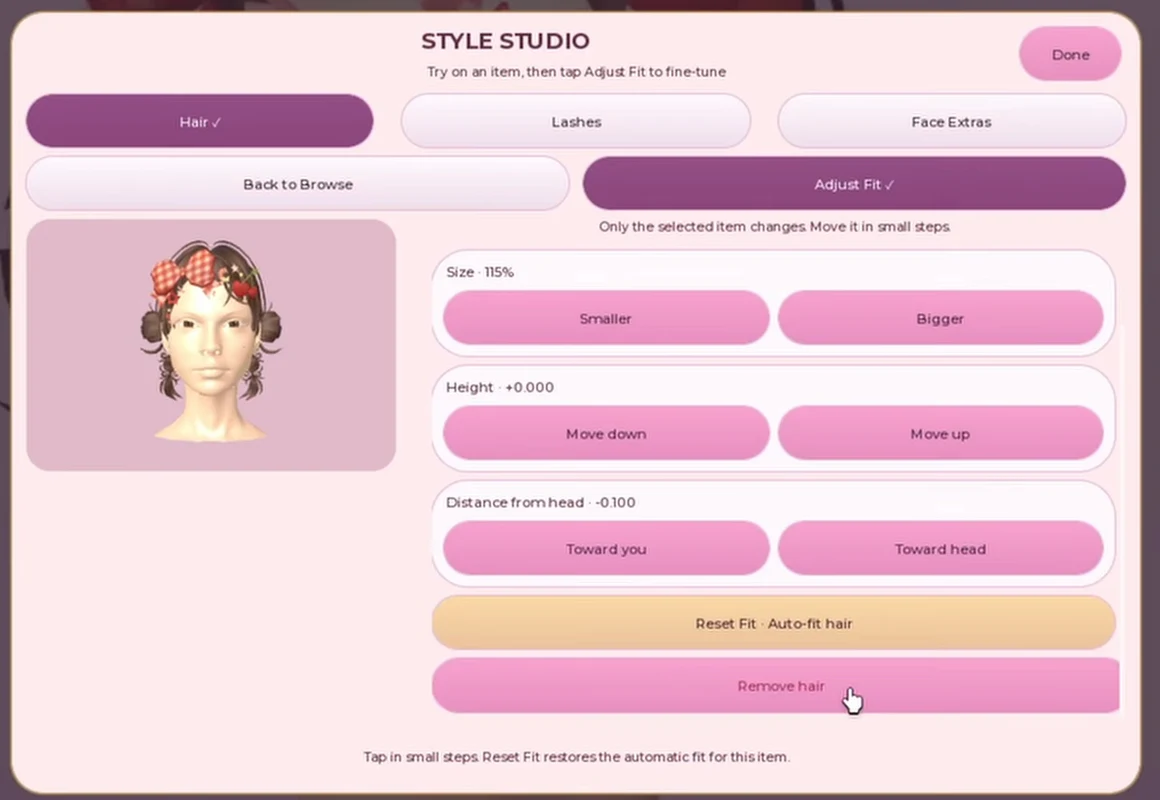
The number shown beside a control describes that item in the recording. It is not a recommended value for every hairstyle or avatar.
Add lashes and select the item to adjust
- Choose Lashes and browse. The newer panel includes a lash search field. The recording later searches natural; its placeholder also suggests wispy. Choose a result and press Try on · Free.
- Open Adjust Fit and select the equipped item. The shown panel identifies Item 1 as equipped and the other two as empty. Its note says that only the selected item changes.
- Adjust the fit, then inspect both eyes. The visible controls include size, left/right position and height. Use small changes to bring the lash band closer to the eyelid, then check the whole face after closing the panel.
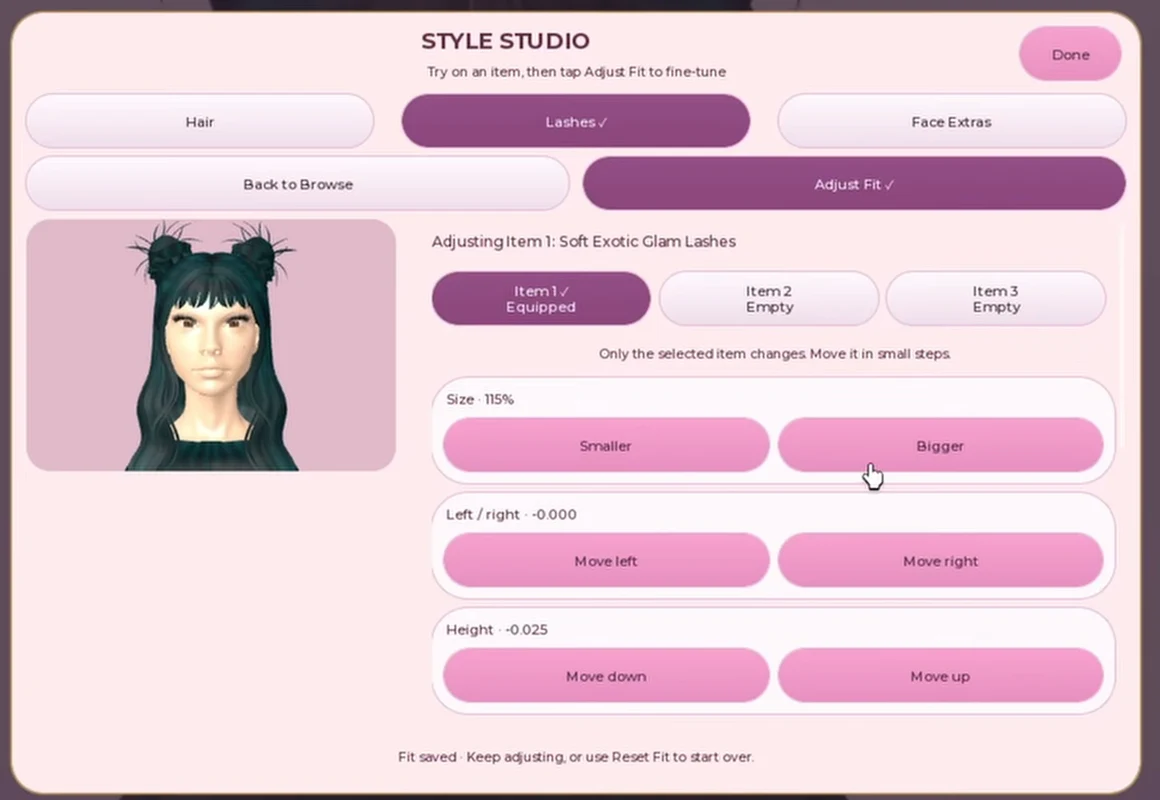
Visible empty slots do not prove a double-lash technique or that every combination fits. Start with one item and inspect the result.
Common fit problems and what to try
- Lashes float above the eyes. Select the equipped lash item in Adjust Fit. Try a small height change, inspect both eyes, then check size if the band remains too wide.
- An adjustment changes the wrong item. Check the selected item or category before pressing another control. The recording’s panel applies changes to the selected item.
- Hair hides the makeup. Check height and distance in the Hair fit panel. If the fringe still blocks the eye shape, remove the hair and try a more open style.
- You have made too many changes. Look for Reset Fit to return to the item’s starting fit, then adjust one control at a time. Avoid copying the example’s numerical values.
- The controls do not match the screenshot. Use the category and panel names as landmarks. If you have the combined Hair · Accessories panel, follow the older route below.
Brows use Face Extras in the recording
At around 2:05 in the newer recording, the workflow switches to Face Extras and searches brows. An item is tried on, then moved in Adjust Fit.
The recording ends with a note that its shown build cannot use brows and lashes together. We have not tested that limit in today’s game. If choosing one replaces the other in your build, keep one accessory and use the makeup tools for the other feature.
If you have the older combined panel
The shorter hair and lashes recording opens Hair · Accessories from the bottom bar. Its Style Studio keeps search results and fitting controls on the same screen.
- For hair, use the Hair category and Try on · Free. Hair controls sit under the eye-color swatches.
- For lashes, choose Face accessories, type lashes, then press Search. Typing alone leaves the previous results visible until the search runs.
- Try a lash item. The face-item controls below the results include size, left/right, up/down, depth and rotation. Check the selected slot before changing it.
This layout explains why an older tutorial can show the controls in a different place. It does not establish when the new layout launched.
Try-on, ownership and second hair slots
Both recordings show Try on · Free. The newer panel separately shows Buy for avatar. Trying an item in the experience does not establish that you own the Roblox catalog item; buying it is a separate choice.
The official Second Hair Slot pass describes wearing a second hairstyle. We have not tested every combination or the current slot rules. Read the official pass descriptions →